
Seedream 5.5 features
Seedream 5.5 features, mapped to the briefs you actually ship
Seedream 5.5 AI Image Generator turns a written brief into images for product listings, slide decks, game concepts, and ad campaigns. Write the prompt, add references when something must stay fixed, and refine one decision at a time.

How Seedream 5.5 approaches image generation
Seedream 5.5 treats a prompt as a sequence of visual decisions rather than a pile of adjectives. Every generation follows the same loop: brief, set up, generate, review, refine.
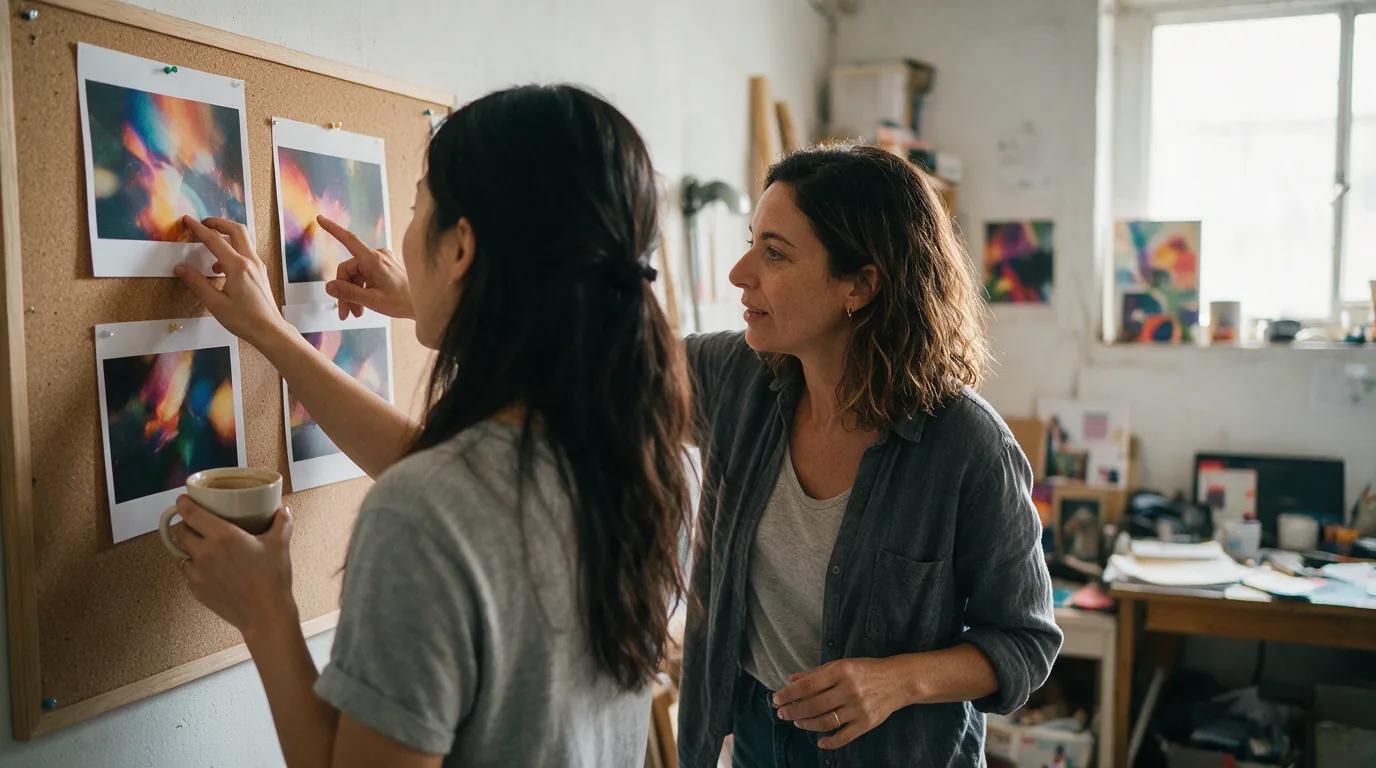
Text-to-image from a structured brief
Name the subject first, then scene, composition, light, and the one detail that matters most. The clearer the hierarchy in the prompt, the easier it is to judge whether the frame works.
Image-to-image with reference images
Add reference images when pose, material, packaging, or brand color must hold. State what stays and what changes so the next frame keeps the parts that already work.
Format set by the end use
Pick an available aspect ratio and output setting that matches where the image will live: a square listing tile, a widescreen slide, or a tall campaign banner.
Review against the brief
Check subject hierarchy, framing, light direction, and unwanted details before touching the prompt. Most weak results come from one failed decision, not the whole brief.
Refine one decision per pass
Keep what works and change a single instruction: background, light spill, silhouette, or clutter. Comparing passes side by side shows exactly what each change did.
Seedream 5.5 features that carry a brief from prompt to delivery
Six working features of Seedream 5.5 AI Image Generator, each tied to a decision you make on a real project.
Prompt-led composition
Direct subject hierarchy, scene, camera language, and palette in plain sentences, so the viewer reads the intended focus first.
Reference-guided editing
Bring an existing product photo, poster, or character sketch into image-to-image and keep its identity while you change the setting, light, or styling.
Multi-round refinement
Iterate in rounds: fix the background, then the light, then the props. Each round changes one variable, so you can always step back to the last version that held.
Aspect ratios for every channel
Generate the same concept for listing tiles, slides, banners, and covers by choosing the ratio that fits each placement before you start.
Copy space and palette planning
Ask for clean negative space and a restricted palette so headlines, prices, and slide titles can sit on the image without fighting it.
Clean, extraction-ready subjects
Describe a plain or solid backdrop when the subject must be cut out later. For true layer work, continue in Seedream 5.0 Pro Layer Decomposition.
Use cases
Seedream 5.5 use cases for four kinds of teams
Each scenario follows a scenario map that pairs a team type with the capabilities it asks for and the images it produces. Use the workflow and decision tips to plan your own brief.
E-commerce: tools, service providers, platforms, and brands
- Who it is for
- Marketplace sellers, brand content teams, and the tools and agencies that serve them.
- What this team asks for
- Transparent image output, layer separation, multi-round editing, 4K detail, and more realistic model-plus-product shots.
- Typical images
- Product main images with a new background, selling-point images with added text, try-on visuals, and second-pass edits that replace the background of an existing product photo.
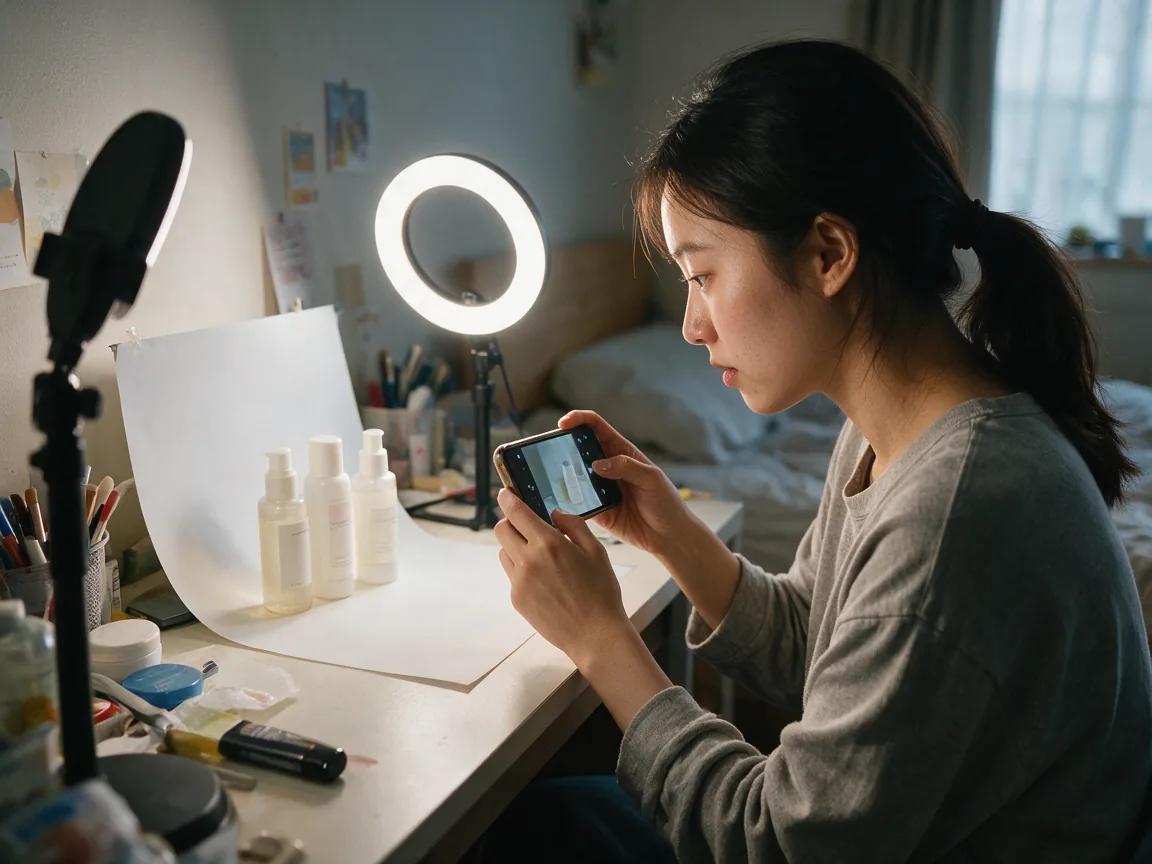
Workflow
- Start from the real product photo in image-to-image and state what must not change: silhouette, label, color, and finish.
- Change one variable per round: background first, then light, then props or a model.
- Generate the listing ratio first, then adapt the approved frame to banner and social ratios.
Decision tips
- If a marketplace requires a plain background, ask for a solid backdrop instead of a styled scene.
- Set prices and claims in your layout tool; leave copy space in the frame rather than generating dense text.
- For try-on visuals, check hands, fit, and fabric drape before approval, and regenerate instead of patching.
PPT and office work
- Who it is for
- Teams building decks, reports, training material, and internal posters.
- What this team asks for
- Transparent image output, layer separation, layout and color optimization, and clearer small text.
- Typical images
- Knowledge illustrations, image-and-text posters, and science or explainer visuals.
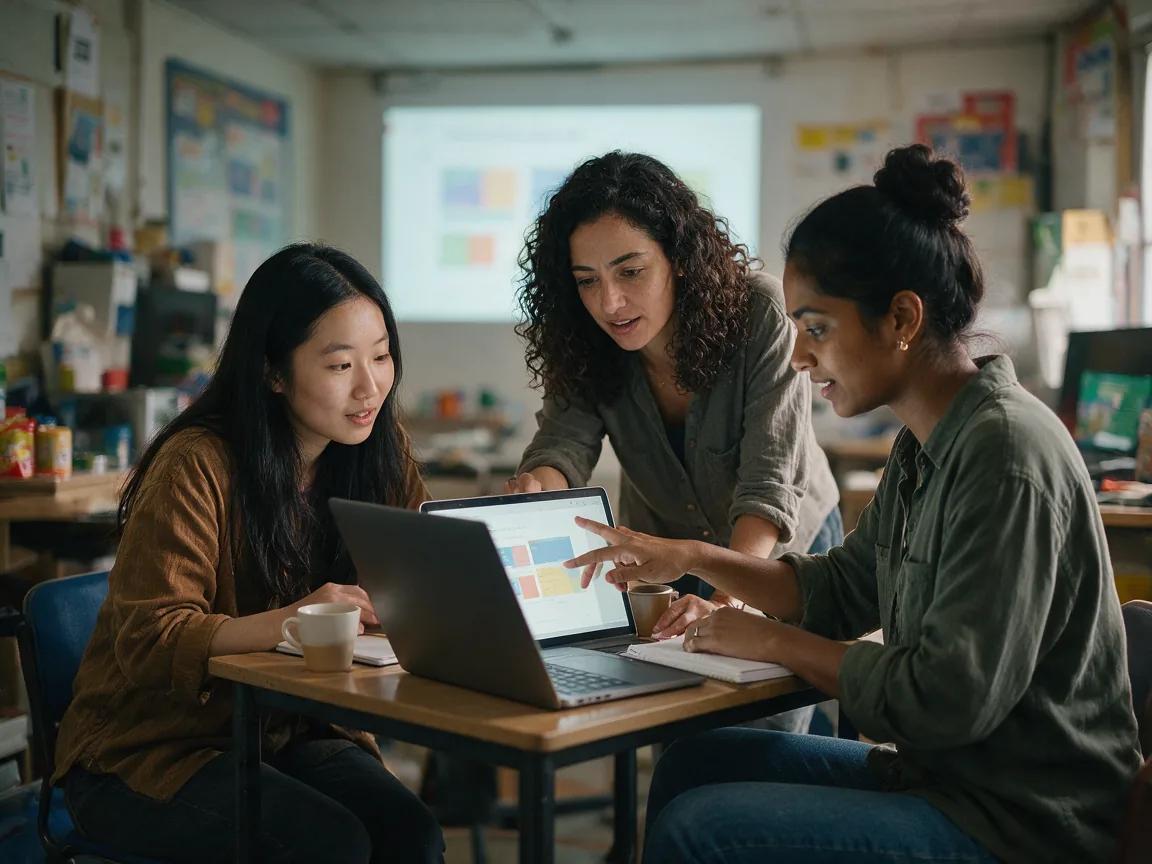
Workflow
- Decide the slide role first: cover, section divider, or concept illustration.
- Use a widescreen ratio for full-bleed slides and leave one side quiet for the title.
- Repeat one style line, such as palette and illustration style, across every prompt so the deck reads as one set.
Decision tips
- Keep fine print in the slide itself so it stays editable and legible; let the image carry the concept.
- Match the palette to the deck theme in the prompt instead of recoloring afterwards.
- A plain backdrop makes icons and objects easy to drop onto any slide layout.
Game design
- Who it is for
- Concept artists, indie studios, and game teams exploring characters, worlds, and items.
- What this team asks for
- Transparent image output, layer separation, and 4K detail.
- Typical images
- Character three-view sheets, scene design, and prop design.
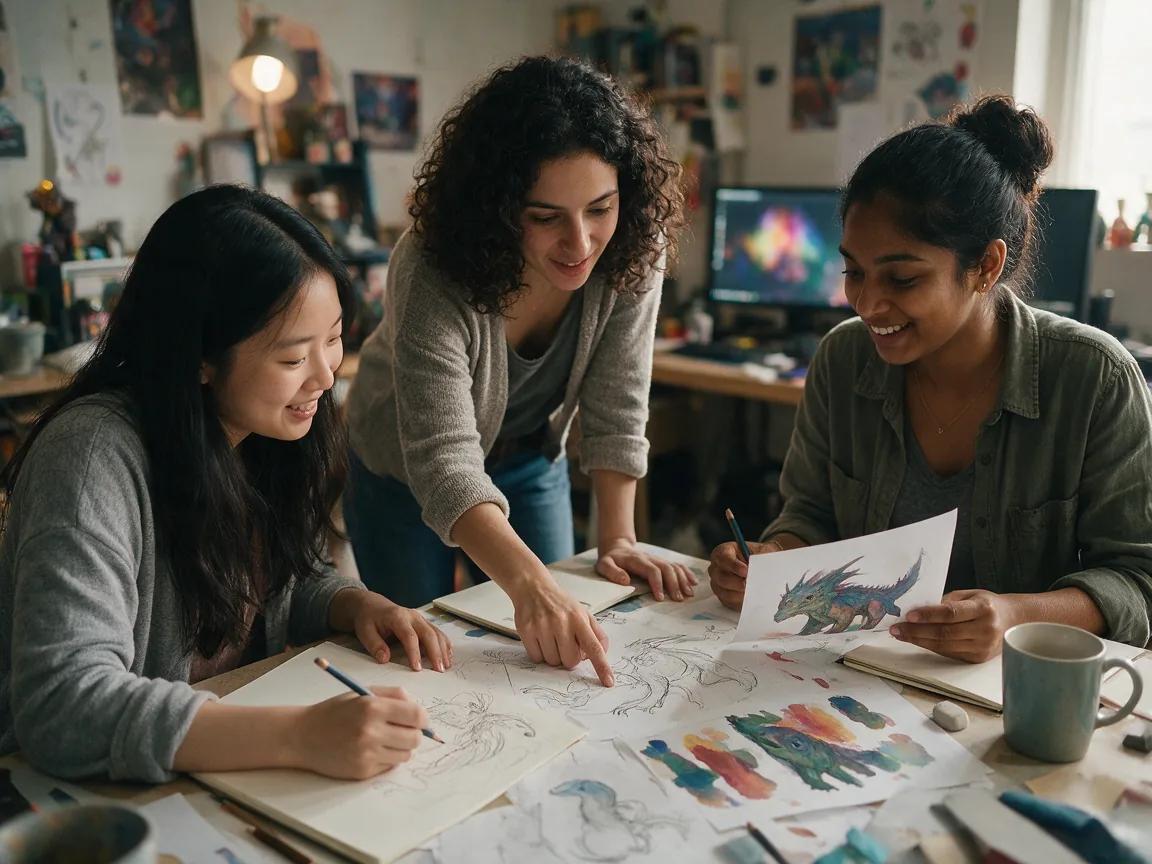
Workflow
- Lock the character with a reference image, then ask for front, side, and back views on a plain background.
- For scenes, set scale, time of day, and key light before adding set dressing.
- Design props one per frame on a neutral backdrop so they can be extracted and reused.
Decision tips
- Check proportions across all three views before any detail pass.
- Repeat two material motifs across costume, props, and architecture so everything belongs to one world.
- Treat generated sheets as concept references and confirm final resolution needs before committing to production art.
Ad agencies and service providers
- Who it is for
- Agencies, freelancers, and in-house studios producing campaign creative at volume.
- What this team asks for
- Transparent image output, layer separation, multi-round editing, layout and color optimization, and clearer small text.
- Typical images
- Marketing posters, cover designs, and campaign banners, plus second-pass poster edits that swap text or logos.

Workflow
- Protect copy space and the campaign palette in the first prompt so later rounds do not crowd the hero.
- Approve one master visual, then adapt it to each channel ratio.
- For second-pass edits, load the approved poster as a reference and change only the text area or logo placement.
Decision tips
- Use the official logo file in final layout; generated marks are for mockups and placement checks.
- Compare the edited poster side by side with the approved version before it goes to the client.
- Keep headline text short in prompts and finalize typography in your design tool.
What Seedream 5.5 adds to a production workflow
Seedream 5.5 is built for briefs that end up somewhere real: a product page, a slide, a pitch, or a campaign.
One brief, many deliverables
Write the concept once and adapt it across listing tiles, slides, banners, and covers by changing the ratio and one decision at a time.
Decisions you can review
Every round answers a clear question: did the hierarchy, light, or background improve? Teams agree faster when changes are small and visible.
Room to grow in the Seedream lineup
Move between Seedream 5.5, Seedream 5.0 Pro, Flash, Lite, and Layer Decomposition as the brief changes, with the same planning habits.
Seedream 5.5 features: what people ask
Direct answers to the questions people search about Seedream 5.5: pricing, how-to, what it can do, and how it compares.
What is Seedream 5.5 and what can it do?
Seedream 5.5 is an AI image workspace that turns a written brief into images, from text alone or with reference images. Teams use it for product photos, slide illustrations, game concept sheets, and ad posters, refining one decision per pass.
Is Seedream 5.5 free? How much does it cost?
Generations use credits, and the generator shows the credit cost for your selected mode and settings before you generate. Nothing starts until you confirm, so you can compare settings first. Plans and credits are listed on the pricing page.
How do I make e-commerce product photos with Seedream 5.5?
Start from your real product photo in image-to-image mode and state what must not change: silhouette, label, color, and finish. Then change one thing per round, background first, then light, then props, and generate the listing ratio before banner sizes.
Can Seedream 5.5 make a transparent background PNG?
Plan it as a workflow: ask for a plain, solid backdrop so the subject is easy to cut out, and check the output settings in the generator before promising a transparent file. When a product or poster needs separate, editable layers, use a dedicated layer tool. Seedream 5.0 Pro Layer Decomposition splits an image into layers.
Does Seedream 5.5 support 4K output?
Only the output settings shown in the generator are available, so check whether a 4K option is listed for your mode before you plan a 4K deliverable. Each setting shows its credit cost before you start.
Can I add text or swap the logo on an existing poster?
You can try it as a mockup step: load the approved poster as a reference in image-to-image and change only the text area or logo placement. For final delivery, set fine print, prices, and the official logo file in your design tool. For text-heavy briefs, compare other models in the AI image generator.
Seedream 5.5 vs Seedream 5.0 Pro: what is the difference and which should I use?
Neither is a universal winner, so choose by brief and test both with the same prompt. Stay with the 5.5 workflow when you want to follow the scenario workflows above, then compare framing, light, and finish side by side before committing. Open Seedream 5.0 Pro with the same brief.
Seedream 5.5 vs GPT Image 2: which is better?
It depends on the brief, so the fair test is the same prompt in both. Keep subject, ratio, and references identical, then judge hierarchy, light, text areas, and how well each result survives one round of edits. Run your prompt in GPT Image 2 and compare.
Is Seedream 5.5 or Nano Banana Pro better for product and ad images?
Neither wins every brief; keep the one whose result needs fewer correction rounds for your product or campaign. Generate one listing frame and one poster frame in each with the same references, then check silhouette, label, and copy space. Try the same frames in Nano Banana Pro.
Can I use Seedream 5.5 for PowerPoint slide illustrations?
Yes, it suits covers, section dividers, and concept illustrations: use a widescreen ratio, leave one side quiet for the title, and repeat one style line in every prompt so the deck matches. Keep small text in the slide itself so it stays editable. Want a different illustration style? Switch models in the generator.
Related pages
Keep exploring the Seedream lineup and other models
Compare the same brief across tools while keeping hierarchy, light, and review criteria consistent.
Put Seedream 5.5 features to work
Start with one subject and one goal, then let Seedream 5.5 AI Image Generator carry the brief round by round.