
From a brief to an image
Seedream 5.5 AI Image Generator
Create product concepts, campaign visuals, and character scenes with Seedream 5.5 AI Image Generator. Write a prompt, add references, and refine until the frame holds.
Generate an image
TL;DR
- Describe the subject, setting, composition, light, and the detail that matters most. Use a prompt example below as a starting point.
- Direct composition, light, color, and atmosphere as one system.
- Use task-specific language for keyframes, ads, products, or characters.
- Refine one visual decision at a time to keep the concept coherent.
From a brief to an image
What is Seedream 5.5?
Seedream 5.5 is an image creation workspace built for turning a written brief into a frame you can judge. Start from text alone, or bring reference images when pose, material, or brand color must stay locked. Choose aspect ratio and generation mode in Seedream 5.5 AI Image Generator, review subject hierarchy and light, then rewrite the next prompt around one clear visual goal instead of restating the whole brief. When a pass misses, keep what already works - costume logic, product finish, or campaign palette - and change only the decision that failed.
Prompt and visual planning
Five decisions that make an image brief stronger
Treat each prompt as a sequence of visual decisions rather than a pile of adjectives. Name what the viewer should notice first, then support that choice with scene, light, camera, and a planned refinement pass.
Establish subject hierarchy
Name the primary subject, supporting elements, and the action or gesture that deserves the viewer's attention - for example a product silhouette against quieter props, or a character gesture that carries the story beat.
Direct the scene
Define place, time, weather, surfaces, and spatial relationships so the setting supports the story. A flooded corridor, a stone plinth, or a wind-cut skyline should explain why the subject sits where it does.
Shape light and color
Describe the direction and quality of light, then choose a limited palette that reinforces mood and contrast. Prefer one dominant key and a restrained accent over competing warm and cool sources that flatten depth.
Choose a camera language
Use framing, viewpoint, depth, and focal emphasis to decide how the audience enters the image - wide and low for scale, closer for material proof, or editorial crop for campaign copy space.
Plan the refinement pass
Identify the one detail to preserve and the one decision to change before writing the next prompt. Keep costume logic or product finish intact while you fix only silhouette, light spill, or background clutter.
Four creative briefs
Where this planning method works
The same structure adapts to very different outcomes when the task and evaluation criteria are explicit - story beat, message clarity, material proof, or world consistency.
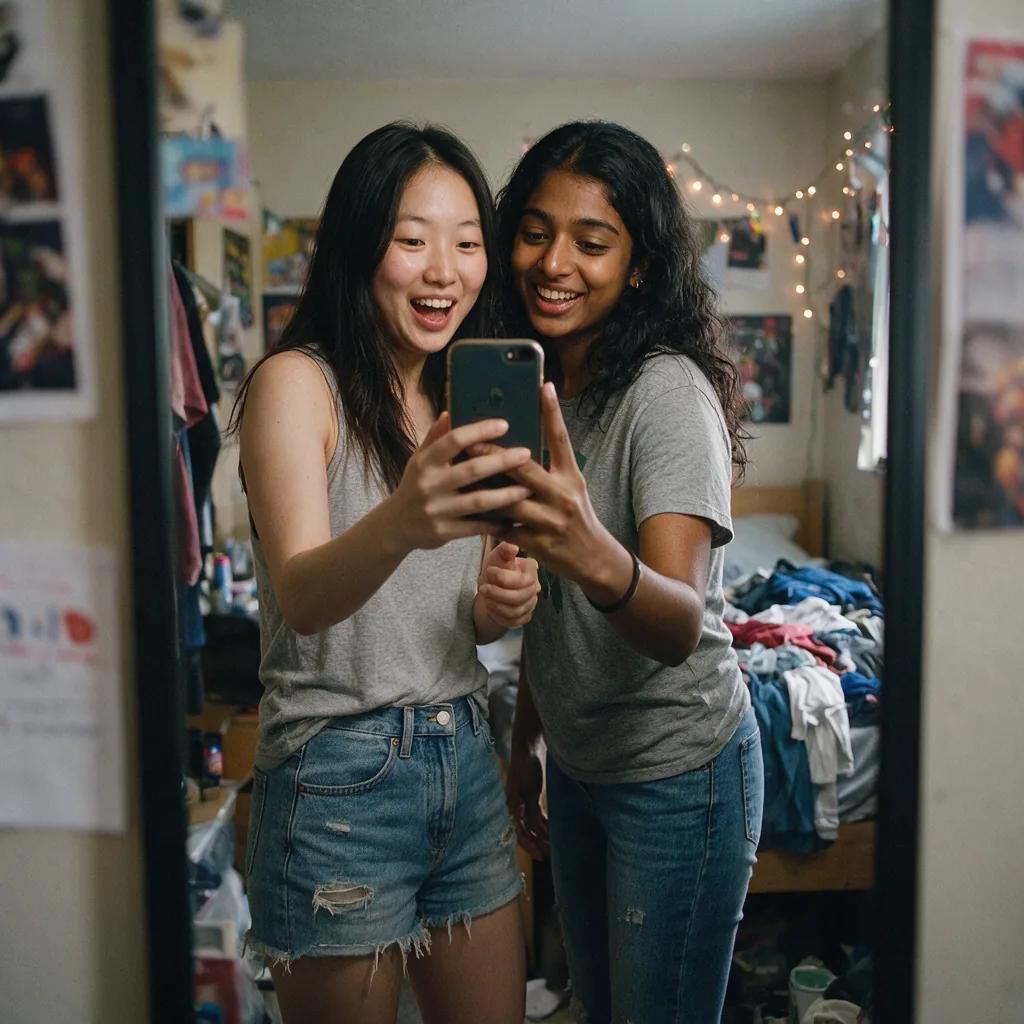
Cinematic keyframes
Block the decisive story beat, character position, environmental scale, lens feeling, and emotional light. Ask whether the frame reads the beat in three seconds before you add secondary atmosphere or extra props.
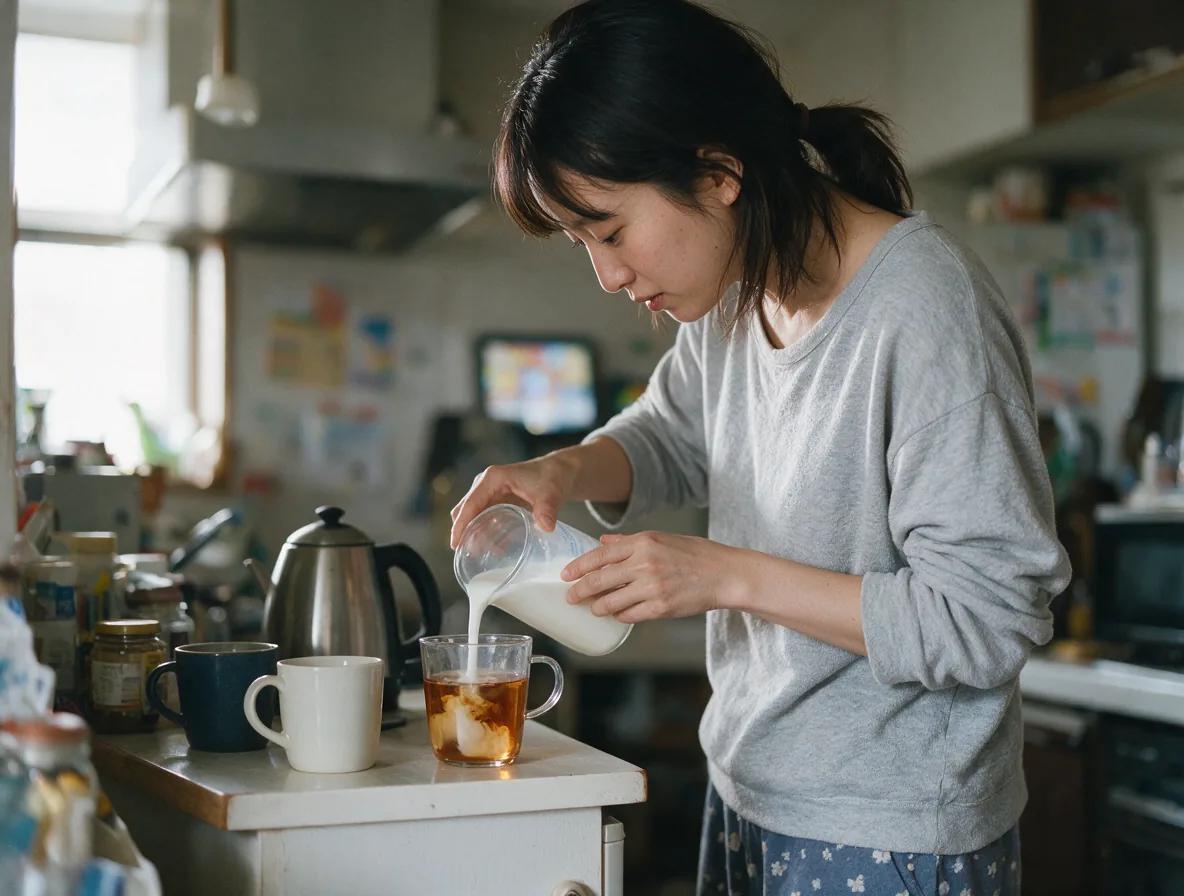
Advertising visuals
Prioritize a single message, product or person, controlled negative space, and a recognizable campaign palette. Protect copy space early so later refinements do not crowd the hero or dilute the palette.
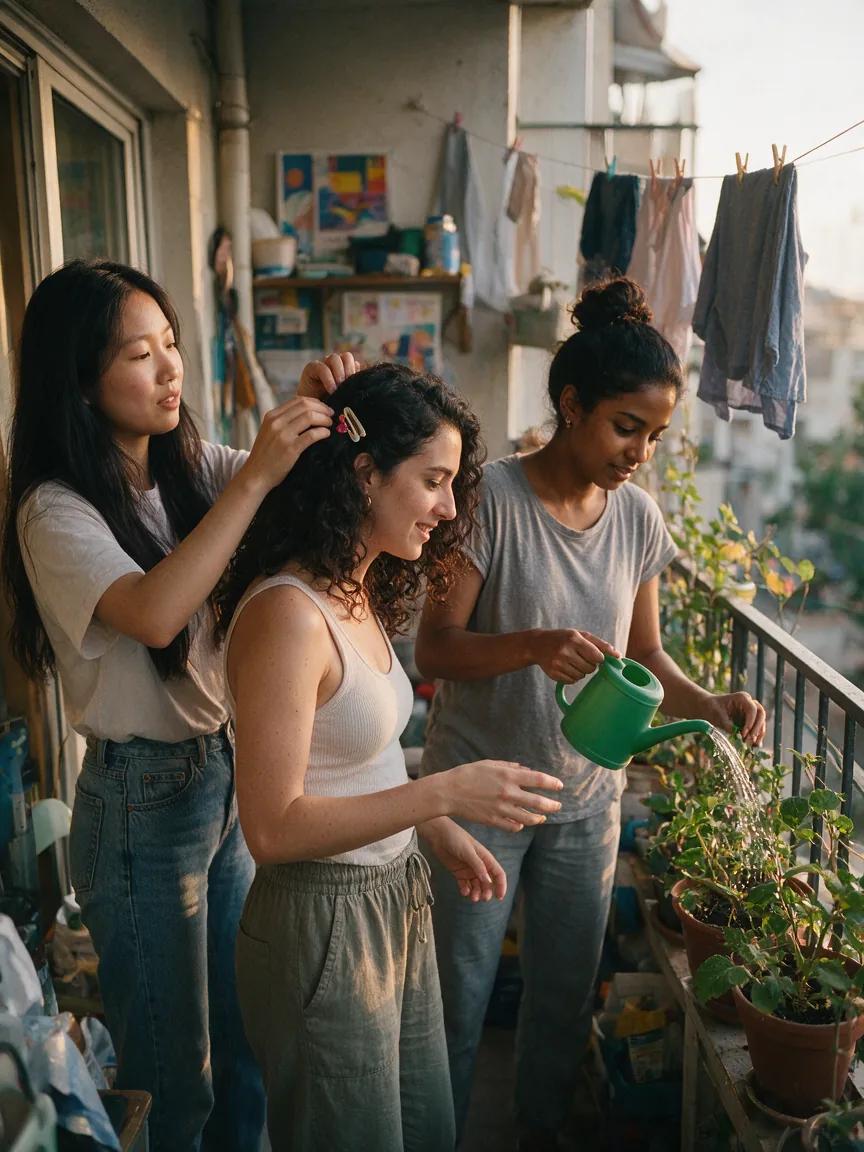
Product concept scenes
Describe material, silhouette, surface behavior, environment, and the visual proof that makes the concept believable - brushed metal edges, glass refraction, or how wet terrain catches specular light on the form.
Character and world development
Connect costume logic, posture, props, architecture, climate, and social context into one consistent world. Repeat two material motifs so wardrobe, tools, and buildings feel like the same place.
Task-specific language
Prompt starting points by image task
Use the middle column as a structural starting point, then apply the refinement cue after reviewing the composition.
| Task | Prompt starting point | Refinement cue |
|---|---|---|
| Cinematic keyframe | A lone navigator reaches a flooded observatory at blue hour, wide low viewpoint, cold mist, one warm window, restrained tension. | Clarify the story beat and simplify competing light sources. |
| Advertising visual | Sculptural running shoe on pale stone, diagonal morning light, deep cobalt shadow, generous copy space, energetic editorial framing. | Strengthen the silhouette and protect the negative space. |
| Product concept | Compact field camera in brushed aluminum and amber glass, modular grip, photographed on mineral terrain after rain. | Make material transitions and functional details more legible. |
| Character world | Desert cartographer in layered weathered linen, ceramic tools, wind-carved archive city, midday haze, grounded documentary portrait. | Repeat two material motifs across costume, tools, and architecture. |
Four-step workflow
How to create an image with Seedream 5.5
Use Seedream 5.5 AI Image Generator to move from a first prompt to a reviewed image in four steps: write, set up, generate, then refine one decision at a time.

- 01
Write your prompt
Describe the subject, setting, composition, light, and the detail that matters most. Borrow structure from a prompt example below, then cut adjectives that do not change a visual decision.
- 02
Set up the image
Choose text-to-image or image-to-image, add references if pose or brand color must hold, and select an available aspect ratio and output setting that matches how the image will be used.
- 03
Generate and review
Follow any sign-in prompts, review the displayed credit cost, and start generation. Check subject hierarchy, framing, light direction, and unwanted details before rewriting the whole prompt.
- 04
Refine and save
Change one instruction at a time - silhouette, light spill, or background clutter - generate again if needed, and download the result that best matches the brief.
Practical questions
Seedream 5.5 questions
Practical answers about prompts, reference images, generation, and refinement.
What can I do with Seedream 5.5?
Use Seedream 5.5 AI Image Generator to create from text or work with reference images. You also get prompt examples and a step-by-step workflow for reviewing composition, light, and material before the next pass.
How do I start generating an image?
Open the generator, enter a prompt that names subject and scene first, choose a generation mode and available settings, then follow the account prompts and start generation.
How should I write a Seedream 5.5 prompt?
Start with the subject and scene, then describe composition, lighting, color, and material. Give the most important detail a clear priority so competing accents do not flatten the hierarchy.
Can I use reference images?
Choose image-to-image mode and add your reference images in the generator. Explain what should stay - pose, logo color, costume logic - and what should change in the prompt.
Where can I check account and credit requirements?
The generator shows account prompts and the credit cost for your selected settings. Review those details before starting a generation so format and mode choices stay intentional.
How do I improve a result?
Keep the parts that work, identify the main problem, and change one prompt instruction at a time. Compare the next result for framing, light, or clutter before making further changes.
Continue exploring
Related image workflows
Compare other creative approaches while keeping your brief, visual hierarchy, and review criteria consistent.
Create your next image with Seedream 5.5
Start with one subject, choose the visual direction, and use the generator to turn the brief into an image you can refine with confidence. Seedream 5.0 image workspace