
GPT Image 2.6 gives your next campaign a visual direction
One product can lead to a whole set of ideas: a close-up, a lifestyle scene, a poster with room for a headline. Use GPT Image 2.6 to explore that direction, then carry your chosen colors, references and brief into the next image.
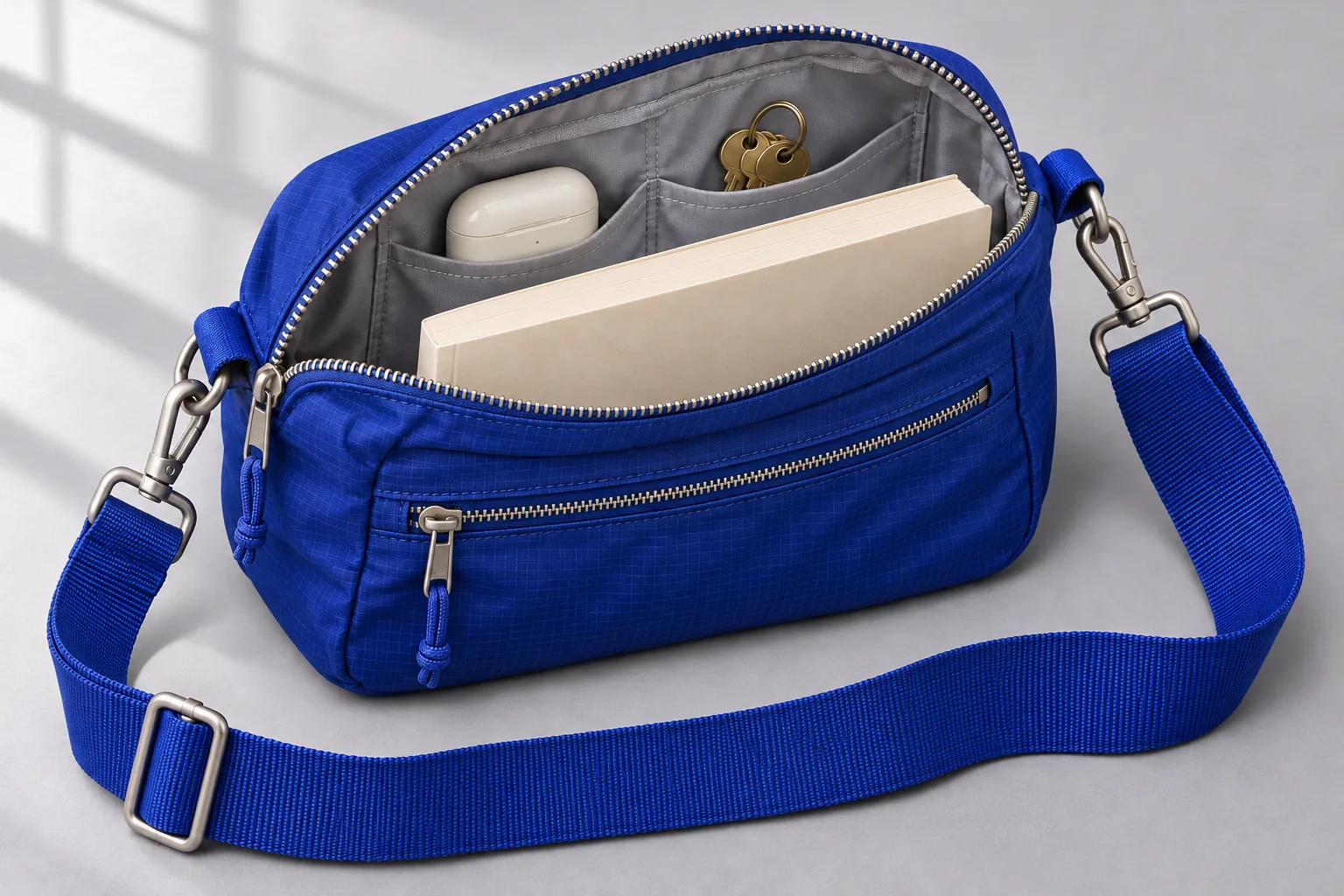
Choose Model
Workflow
0/32000 characters
More settings
Estimated credits are reserved first. The final charge follows actual usage; extra reserved credits are released. If more are needed, your result is kept until you top up.
Develop a connected set of ideas with GPT Image 2.6
On Seedream 5.0, GPT Image 2.6 brings text-led creation and reference editing into the same creative process. Start with a product or theme, define its visual cues and build each scene around the place it will appear.
Choose a GPT Image 2.6 version for this campaign stage
Think about the image you need next, from an early direction to a piece ready for review.
GPT Image 2.6 Flare: explore the scene
Try GPT Image 2.6 Flare with a product, setting and mood. Compare a studio view with a more playful arrangement before choosing the campaign’s visual direction.
GPT Image 2.6 Sunburst: develop the chosen idea
Take your selected reference into GPT Image 2.6 Sunburst. Describe the next scene and repeat the color, material and lighting cues you want to carry forward.
GPT Image 2.6 Economy: sketch a smaller placement
Use GPT Image 2.6 Economy when 1K PNG meets the brief. It supports reference editing, with GIF available for ideas that begin in text mode.
Build the parts of a campaign with GPT Image 2.6
A useful image set has a shared idea and a purpose for every frame. Decide what each placement needs before generating.
Turn the product into a scene
Describe its materials, scale and surroundings. Give GPT Image 2.6 a setting that explains the product’s use, from a bag packed for a day out to a bright tabletop arrangement.
Carry visual cues through references
Use up to 16 references and give each a role: the product, a palette or a composition. Reuse selected results as references while checking each new image against the brief.
Leave room for the message
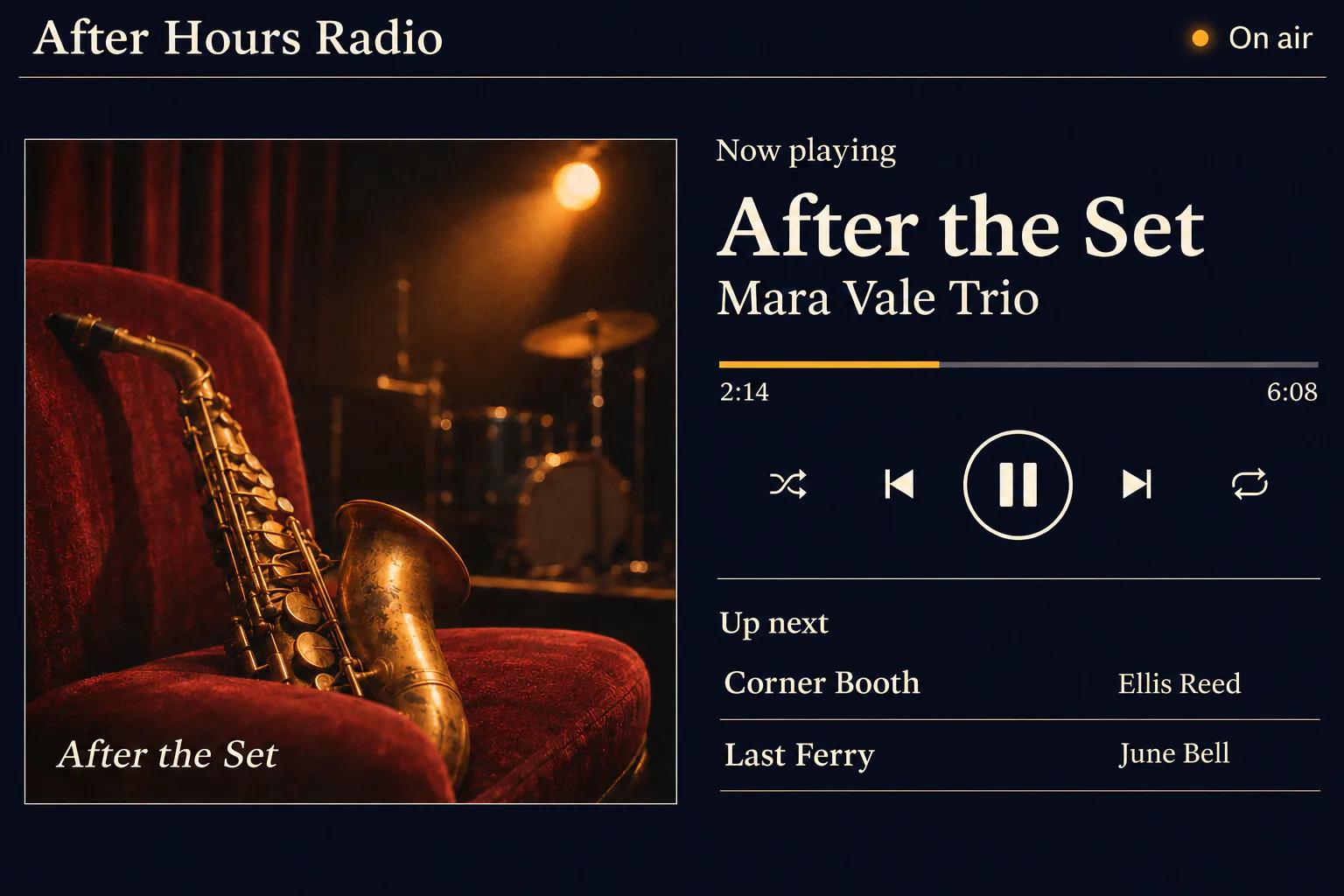
Plan the subject position and open space for a headline. Put exact wording in quotation marks, then check lettering and hierarchy at the intended display size.
Match the file to the placement
GPT Image 2.6 Flare and Sunburst offer PNG, JPEG, WebP, GIF and SVG. Set compatible transparency for standalone assets, or inspect frame timing and the loop for a GIF.
Why plan a campaign with GPT Image 2.6?
A shared brief keeps decisions visible
Name a palette, light direction and recurring detail before you begin. Those instructions give you a practical checklist when choosing which images belong together.
Each placement earns its own composition
A portrait poster and a wide banner need different framing. Choose the ratio first and describe the space around the subject, rather than relying on a later crop.
The strongest idea can travel further
A useful product scene can become the reference for another setting. Keep what works, name the new purpose and compare the output before adding it to the set.
Build your GPT Image 2.6 image set one decision at a time
Start with a shared direction, then make each frame serve a specific placement.
- 1
Write the campaign’s visual brief
Tell GPT Image 2.6 what the product is, who the image is for and what mood it should carry. List the colors and details that connect the set.
- 2
Choose references with clear roles
Add the product image and any useful style or composition references. Explain their order so the next scene has a concrete starting point.
- 3
Prepare the next placement
Choose version, aspect ratio, size and format. Review estimated credits, then generate the image for that placement.
- 4
Review the set together
Compare color, product details and lettering across your chosen images. Download what fits and use a selected result to guide the next scene.
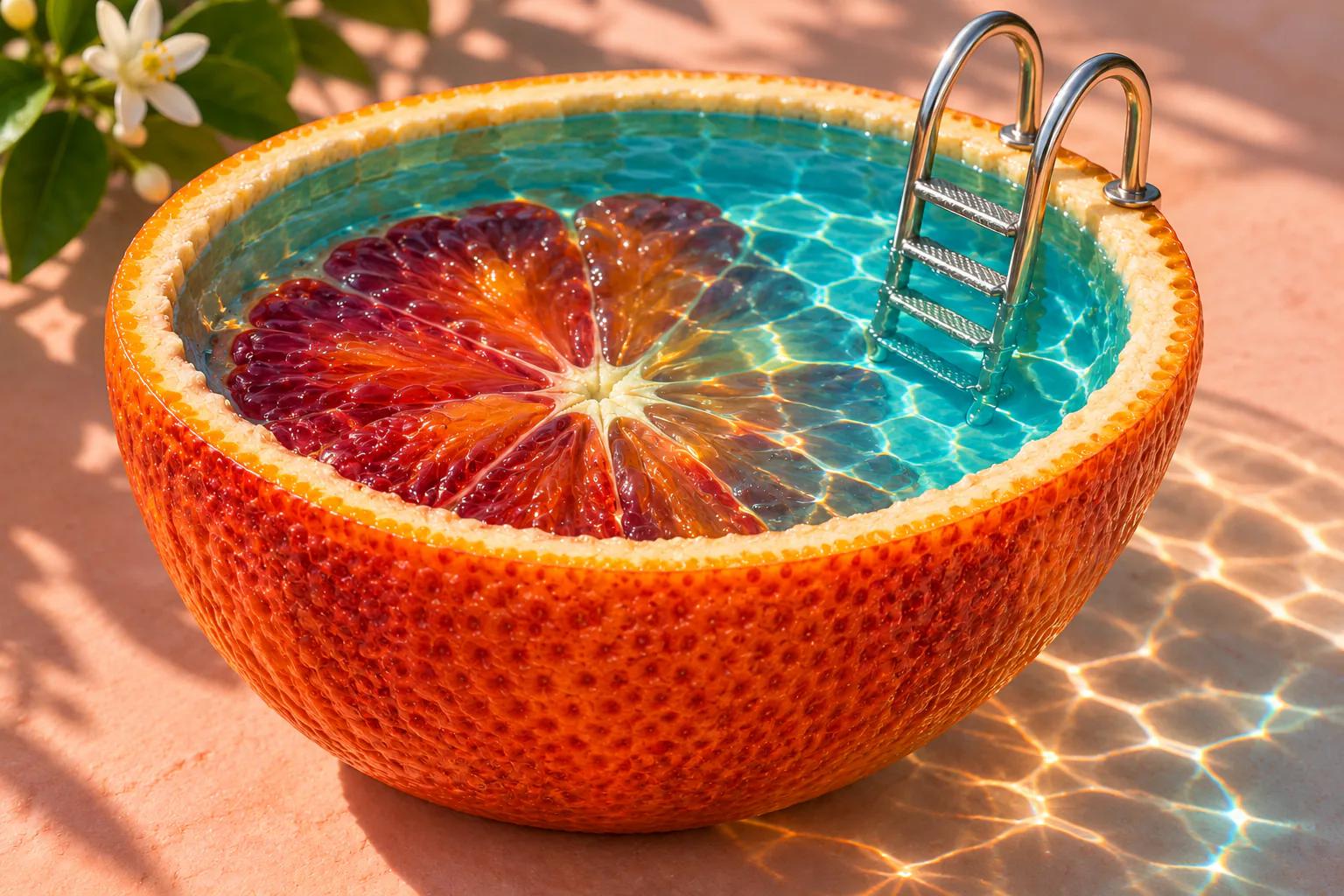
Review a citrus campaign with GPT Image 2.6
Picture a bottled orange soda launch. Use one approved product photo as the reference for a wide shop banner and a vertical story. Check both drafts in their intended layouts.
Match the product before adjusting the scene
If the label warps or the cap changes color, ask GPT Image 2.6 to preserve the bottle silhouette, label shape and cap color. Compare both images side by side.
Give each placement its own framing
If the banner crowds the headline, ask GPT Image 2.6 to place the bottle on the right and clear the left. Center the bottle for the story and leave room for overlays. Preview both at their publishing sizes.
Proofread the headline at a glance
If “Orange Spritz” comes out as “Orange Sprit”, ask GPT Image 2.6 for the exact spelling. Check each letter at publishing size. If the composition shifts, use the clean image and add the headline separately.
Planning a project with GPT Image 2.6
Can GPT Image 2.6 help with a product image series?
Yes. Start from a common brief and reuse relevant references. Generate each scene for its purpose, then compare product details, color and framing before assembling the series.
How do I choose a GPT Image 2.6 version?
Use the next deliverable as your guide. Flare and Sunburst expose the broader output controls; Economy offers 1K PNG and text-to-image GIF for smaller-format ideas.
Can GPT Image 2.6 change only part of a reference?
GPT Image 2.6 Flare and Sunburst accept either a mask or transparent PNG markup. Describe the local change and the visual cues to retain; do not combine both guidance methods.
How should I budget several images?
Review the estimate for each generation. Economy PNG uses 8 site credits; other options settle against actual usage after reserving an estimate. Unused credits are released, and ready results wait if a top-up is needed.
Can I make assets with transparent backgrounds?
Choose compatible settings such as PNG or WebP, then check the exported alpha channel. Preview the edges and shadows on the colors used in your campaign.
What should I check before publishing the set?
Inspect spelling, recognizable product details and the downloaded dimensions. GPT Image 2.6 resolution depends on the aspect ratio and tier; a 4K label is not a fixed 4096-pixel promise.
Give your next campaign its first GPT Image 2.6 image
Bring a product, a palette and an idea worth exploring. Make the first frame, choose what works and build the rest from there.
Create the first image